Checkboxes are just for keeping track while you work. They clear when you reload the page.
-
Review Soldier Talent Profile
Steps:- Navigate to IPPSA log in using self service button top left hand corner
- Go to Soldier Talent Profile tile
- In the notes section of your sheet write down your MRC status ie MRC1 or MRC2 (this status can be found in your soldier talent profile)
- If you're within 1 year of ETS write down your ETS in the retention row of your records review sheet. (ETS date is found on the soldier talent profile)
- Look through the entire page. Click through all tabs!
- You should be checking all information for validity and missing information. See below for what you should look out for.
**PLEASE UNDERSTAND THE ACCURACY OF YOUR RECORDS IS YOUR RESPONSIBILITY AS A SM. THE S1 DOES NOT KNOW EVERY INDIVIDUALS STORY (MILITARY EDUCATION, AWARDS CIVILIAN EDUCATION, ADDRESS CHANGES, PULLES ETC.) SO YOU MUST ACCURATELY REVIEW YOUR RECORDS AND MAKE NOTE OF EVERYTHING SO WE AS AN S1 TEAM CAN DO OUR PART TO CORRECT THESE ISSUES. YOU CAN CHECK THIS AT ANYTIME TO ENSURE THE ACCURACY OF YOUR RECORDS AND NOTIFY US OF ANY CHANGES TO YOUR RECORD.
What to look for:
Ensure all schools Military Education, Civilian Education, Qualifications, Awards etc. are showing
Ensure your address is accurate! Your current address and home of record.
Check PULHES
P-Physical Capacity and Stamina- this is your overall health, endurance and ability to handle physical activity
U- Upper Extremities- Your arms, shoulders, hands, and upper spine
L-Lower Extremities- Your legs, feet, knees, hips and lower back
H-Hearing/Ears- How well do you hear and the condition of your ears
E- Eyes- Your vision and eye health
S- Psychiatric- Your mental and behavioral health
The numbers:
1- Good to go
2- You have some limitations
3- You have some limitations
4- You have severe limitations
If something is wrong:
If anything is missing, you will need to gather documents such as transcripts for civilian education and submit a PAR and add all documents as an attachments
To submit a PAR, you will click on the tab labeled "My Personnel action request". The top right corner will have a button labeled "Create Personnel Action". You will select the action that best suits your request
Completion Criteria:
If everything on your soldier talent profile is correct mark Y for complete on your checklist.
If something was wrong and NOT resolved TODAY mark N and fill out what is wrong in the notes section.
-
DD 93 Emergency Contact Info
- Log into IPPSA
- Select the tab labeled "DD93 Dashboard"
- Scroll to the bottom of the page and look at your Authorized Dependents and Emergency Contacts. If you would like to add Emergency Contacts select the link at the bottom left of the screen labeled "Add an Emergency Contact", fill out as much information as possible. (For the State and Country, it will try to give you a hard time please only type the abbreviated version of your state and country of residence and click the magnifying glass to search, then select the appropriate location. When you have completed filling out the information select DONE in the top right corner of the screen and ensure the new contact populates under Emergency Contacts. You can add as many as you would like! If you would like to add more authorized dependents you will need to make an appointment with the DEERS office to do so.
- Once you have added all contacts, scroll to the top of the page and select complete a new DD93 form. It should also show the last time you completed this form. This form needs to be revalidated yearly even if nothing changes!
- Ensure the info from 3c to 4e is correct and accurate if not you will need to submit a PAR or visit the DEERS office.
- 5a-9a should auto-populate based on the previous information entered. These lines will only include parents and stepparents, if any. You WILL HAVE to add a parent even if all information is unknown. Then you may add anyone else.
- Section 10a will allow you to select any person from the individuals added under emergency contacts that you DO NOT want notified of the emergency, in the event of one. Section 10b will be for whom you would like notified in place of that person. If there is no one you DO NOT want informed of an emergency, in the event of one, you can leave this section blank. 11a is if any of your emergency contacts are military, they may be added (only one).
- Scroll to the top of the page and select benefits related information. It will bring you to section 2
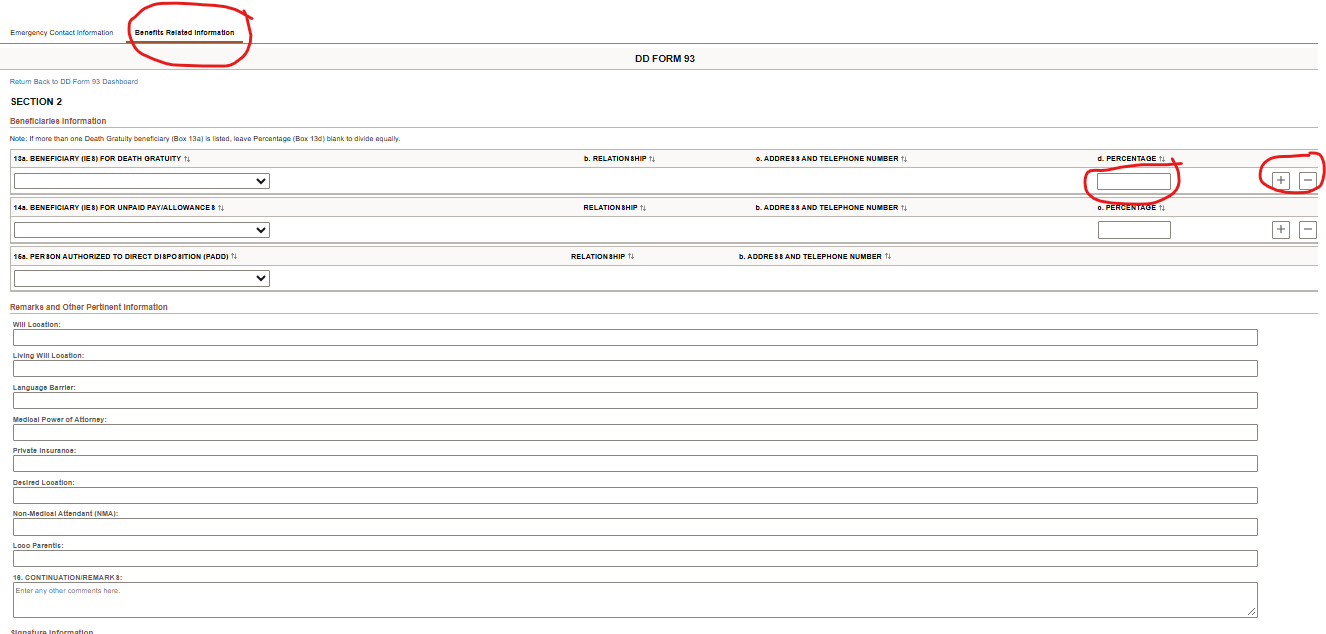
- 13a. Will ask for Beneficiaries for your death gratuity. This is not the same as your SGLI. This is 100k the army gives you for your service in the event of your passing. You may add or delete people with the plus and minus button on the right side of the screen. You will select from your drop down of Emergency contacts listed in the beginning. Select a percentage of the money you want each person to receive. One person can receive 100% or two people can receive 50%. Each percentage must be in increments of 10. Therefore, you could not split it 75-25 between two people but you could split it 70-30 between two people.
- 14a. Will ask for a beneficiary for unpaid allowances. Unpaid allowances would be final paychecks or any money you did not receive prior to your passing. The same rules apply for adding and removing people as well as splitting the funds.
- 15a. Will ask for a Person Authorized to Direct Disposition... this would be the person that would make medical decisions for you if you, yourself could not.
- Scroll down to Remarks and Other Pertinent Information.
- Provide the location of your will and living will if you have one. If not type N/A
- Describe whether you have any language barriers
- If you have a medical power of attorney insert their name in the appropriate box, if you do not, please type N/A
- List private insurance if you have any.
- Enter the desired medical facility you would like to be transported to in the event you were sent back to the states for medical attention in the "Desired Location" box. Select an amazing facility or one close to home whatever you prefer.
- In the Box labeled "Non-Medical Attendant" insert whomever you would like to sit at your bedside
- In the Box labeled "Loco Parentis" insert your guardian that acts as a parent but is not. For example, a grandparent who took care of you or a foster parent
- In the Box labeled "Continuation/Remarks" insert any relevant additional information.
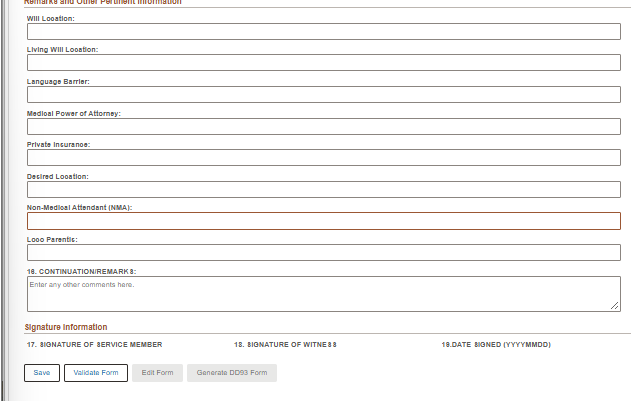
21. Scroll to the very bottom of the page, the section labeled "Signature Information". You will first validate the form. Once you validate the form select "ok" twice and prepare to sign. A button labeled "Sign Form" should appear select and sign with your cac.
22. You should see that the form has been signed and updated. You can select the button labeled "Generate DD93 Form" to save the document for your own records.

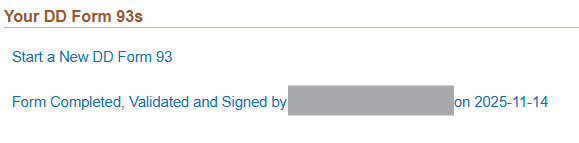
23. Scroll back to the top of the page and select the link labeled "Return back to DD Form 93 Dashboard". It should read "Completed form. Signed on (whatever date you are complete this action). If it does not update and show the new date of completion, you will need to go back into the form by selecting "Start a New DD Form 93" or "In progress..." to complete the form. Once this line shows the accurate date you may check this item off of your checklist.
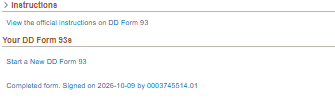
This form was signed and completed 10/9/2026. It will need to be resigned and validated by 10/9/2027 to remain in compliance with your records review.
**PLEASE UNDERSTAND THAT IF ANY EMERGENCY WERE TO OCCUR STATESIDE OR OCONUS WE WOULD LIKE TO BE ABLE TO SUPPORT YOU IN THE BEST WAY POSSIBLE AND NOTIFY YOUR CONTACTS OF THE SITUATION. THEREFORE, WE NEED THE MOST UP TO DATE INFORMATION POSSIBLE. THIS FORM MUST BE COMPLETED YEARLY SO WE CAN MAKE CONTACT WITH THE APPROPRIATE PEOPLE AS SOON AS POSSIBLE. IT IS YOUR JOB AS A SM TO KEEP THIS INFORMATION UP TO DATE AND RESIGN THE FORM YEARLY.
-
5960- BAH Housing and Allowance Form
- Log into IPPSA
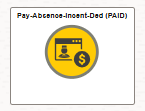
- Select the tile labeled "Pay-Absence-Incent-Ded (PAID)"
- In the box labeled Entry-type, select the drop down and select "HOUSING". In the box labeled Status, select Initial. Then click add at the bottom of the page.
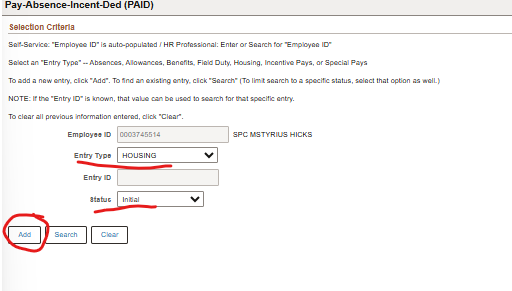
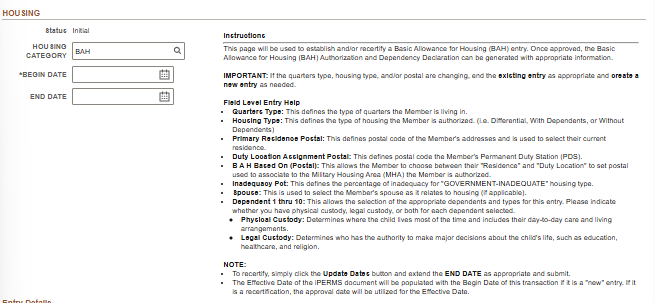
- You should be brough to another page. In the box labeled Housing Category, click the magnifying glass and select BAH. Your begin date will be whatever current day you are completing the form. The end date will be that same day next year. For example, if you are filling out this form October 9th, 2026, that would be your begin date and your end date would be October 9th 2027.
- Scroll down to the section labeled Entry Details.
- For quarters type select the magnifying glass and the situation that best fits yours! Living with parents, renting or owning a house would qualify as "Commercial or Privatized Housing"
- For housing type select the magnifying glass and the situation that best fits yours! Are you living with or without dependents? Are you dual military with or without dependents?
- The Primary Residence Postal, Duty Location Assignment Postal should auto-populate after selecting the magnifying glass. If it does not auto populate you will need to ensure you have an updated address in the "Personal details" tile AND that your last 5960 document has expired. For example, if you filled out your last BAH form in November 2025 you will need to wait until November 2026 to complete your next form with updated dates and information.
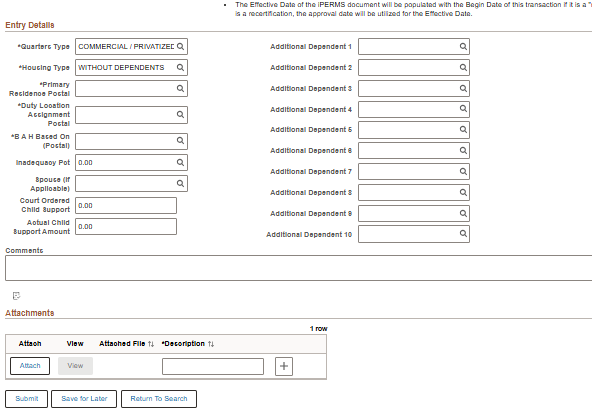
- In the box labeled "BAH Based on Postal", you can select the postal code in which you would like your BAH based on. It is recommended that you select the postal code with the highest cost of living to maximize your payout.
- Complete additional info as necessary and submit the form. You may leave comments if you feel necessary. You may also add relevant attachments such as leases etc.
- Once you have selected "Submit" you can check this box off of your checklist and move on to the next step
**PLEASE UNDERSTAND WHETHER YOU ARE MDAY OR AGR THIS IS AN IMPORTANT FORM TO COMPLETE YEARLY TO ENSURE YOU RECEIVE ACCURATE BAH THROUGHOUT THE YEAR, DURING ANY MOBILIZATIONS AND DURING ANNUAL TRAININGS.
-
Validate Promotions Preferences
- Log into IPPSA
- Select the tile labeled "USAR/ARNG"
- Select the next tile labeled "Board Preferences USAR/ARNG
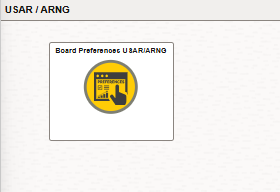
- Ensure the "Consider for Military Education and Board" tab is set to YES if you wish to be considered for the promotion board.
- Go down to Preference 1 and select the Mileage that you are comfortable traveling from your home of record. For example, if you select 50 miles this means you are only comfortable being promoted to locations within 50 miles of your home of record. Selecting "UIC only
- Once saved mark Y for complete on your sheet
-
Family Care Plan
You will only need a Family Career Plan, if you have children and you are not married to the father or mother of the child. If you do not have kids, then you do not need a family care plan and can check this box off on the checklist. If you are married to the mother or father of the child then you also do not need a family care plan, as it is expected that you and the other parent will be able to work out a plan if you were to deploy. If you and the mother or father of the child are married but you all are dual military, you will need to create a family care plan, in the event you are both deployed.- You will need to gather the following documents
- DA 5304-R FCP Counsel Checklist
- DA 5305 Family Care Plan
- DA 5840 Certificate of Acknowledgement
- DA 5841 Power of Attorney
- You will take these documents to your battery commander to sign off on and approve the documents.Completion Criteria:
Mark Y for complete on your sheet if you either:
a.) Don't need a family care planb.) Already have a family care plan
Mark N if you still need to complete your family care plan in the notes annotate which step of the family care plan creation process you are on.
-
Retention/ Bonus SLRP
- If you are within one year of ETS: Are you planning to re-enlist? Annotate preference and ETS date in notes on your sheet. ETS can be found in your soldier talent profile.
- Are you awaiting a bonus? Is it late? If you are waiting for a bonus and it is late follow the steps below:
1. Check in I-Perms for your DA FORM 5261 and confirm when you are supposed to receive your bonus. Once logged
2. If your DA FORM 5261 shows that your bonus is in fact late write the date your bonus was supposed to arrive in the notes section on your sheet.
Completion Criteria:
Once you've performed the appropriate tasks regarding reenlistment and if you have a bonus and its not late mark Y for complete.
If your bonus is late mark N
-
IPERMS Record Reviews INCOMPLETE
**5960 MUST BE SIGNED BY THE COMMANDER TO COMPLETE THIS SECTION**1. Log in IPERMS using EAMS-A/CAC option
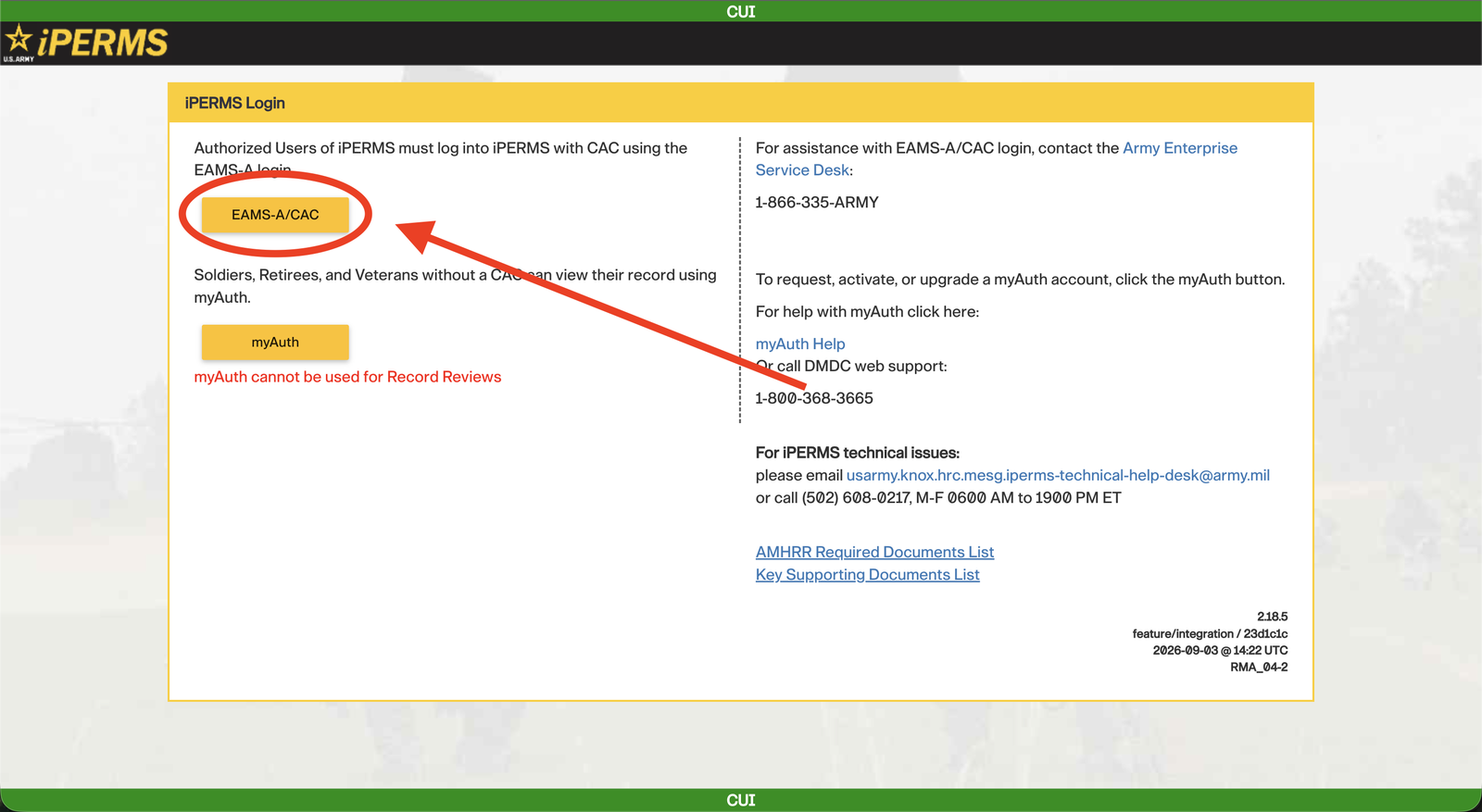
2. Select the "Reviews" tab at the top. If you do not see it, it is because you did not use the EAMS option when logging in. You must log out and restart this task.
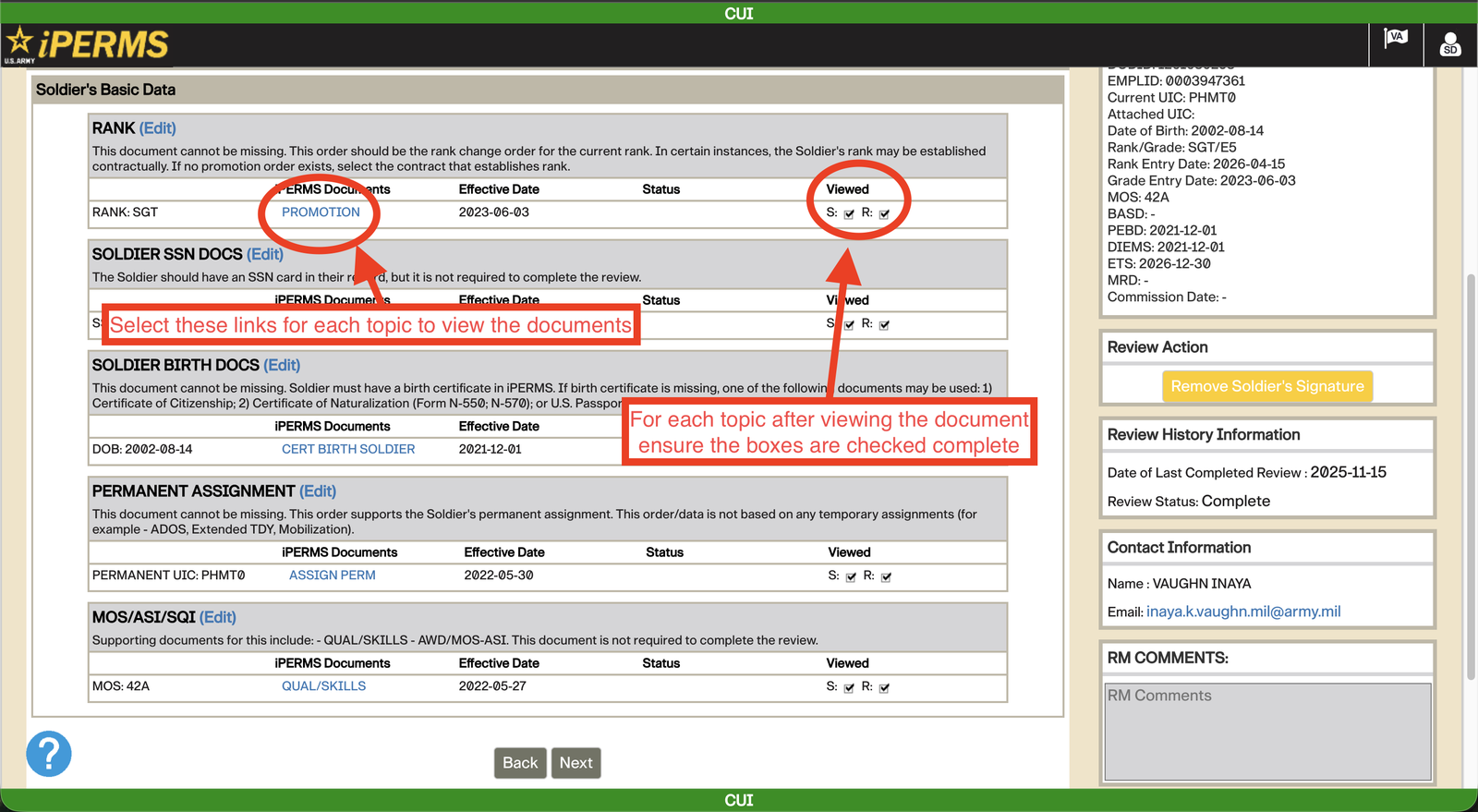
3. You will be on the getting starting tab of the records review select "Next"
4. For the rest of the review you will be going down the list and selecting each document to view and ensure they are correct. At times there will be multiple options for the same topic you will need to select either the most recent document or the most relevant.